

**Get expert review help today →
79% of people trust online reviews as much as word-of-mouth referrals. That makes even small edits to your Google feedback matter a lot for friends, neighbors, and future buyers. This edit google reviews step-by-step guide walks you through what works in 2027, and how to fix common roadblocks fast.
Yes, you can change your own Google review at any time. You can update the star rating, rewrite the text, and add or swap photos. You do it from Google Maps or straight in Google Search. Business owners cannot edit what you wrote; they can only reply or ask Google to review a post that breaks policy.
However, Google’s menus can feel hidden, and it’s easy to click the wrong profile or even the wrong Google account. In this guide, you’ll see clear steps for desktop and phone, plus what to do if edits don’t show up right away. You’ll also learn what owners can do to respond well and stay within policy in 2027.

Can You Actually Edit a Google Review?
Yes. If you wrote a review while signed in to your Google account, you can go back and edit it. You can change the star rating, rewrite parts that no longer reflect your experience, and add or remove photos. You can also delete your review, then write a fresh one later if you prefer.
However, there are firm limits. You can only edit reviews posted by you. You cannot change someone else’s review, even if it’s about your business or your home address. If you’re a business owner, you still can’t touch that text. You can reply to it, which is public, or you can report it if it breaks content rules like spam, hate, or off-topic claims.
Moreover, Google shows the “Edited” label when a review is changed. That way, readers know it was updated. Your update might not appear at once. Sometimes Google needs a short window to reprocess the content. That delay can feel odd, but it’s normal and usually brief.
In addition, your edit must follow Google’s review policies. Profanity, personal attacks, and unrelated links can get a review hidden or removed. If that happens, your future edits may not bring it back.
Quick facts about editing
You can edit only the reviews you wrote while signed in. Business owners can’t change customer text; they can only reply or flag posts that break policy. Edited reviews usually display an “Edited” label and may take a short time to appear.
“We’ve been able to secure reviews from real customers that reflect our service quality. The reports were incredibly detailed too.” — Owner, Brooks Home Repair
Also Read!
How to Get More Google Reviews for Your Home Service Business
How to Edit Your Google Review: Step-by-Step Instructions
This section is your edit google reviews step-by-step guide in action. Below are three clear paths: Google Maps on desktop, Google Search on desktop, and the Google Maps app on mobile (Android or iOS). Use the one that fits how you posted the review in the first place.
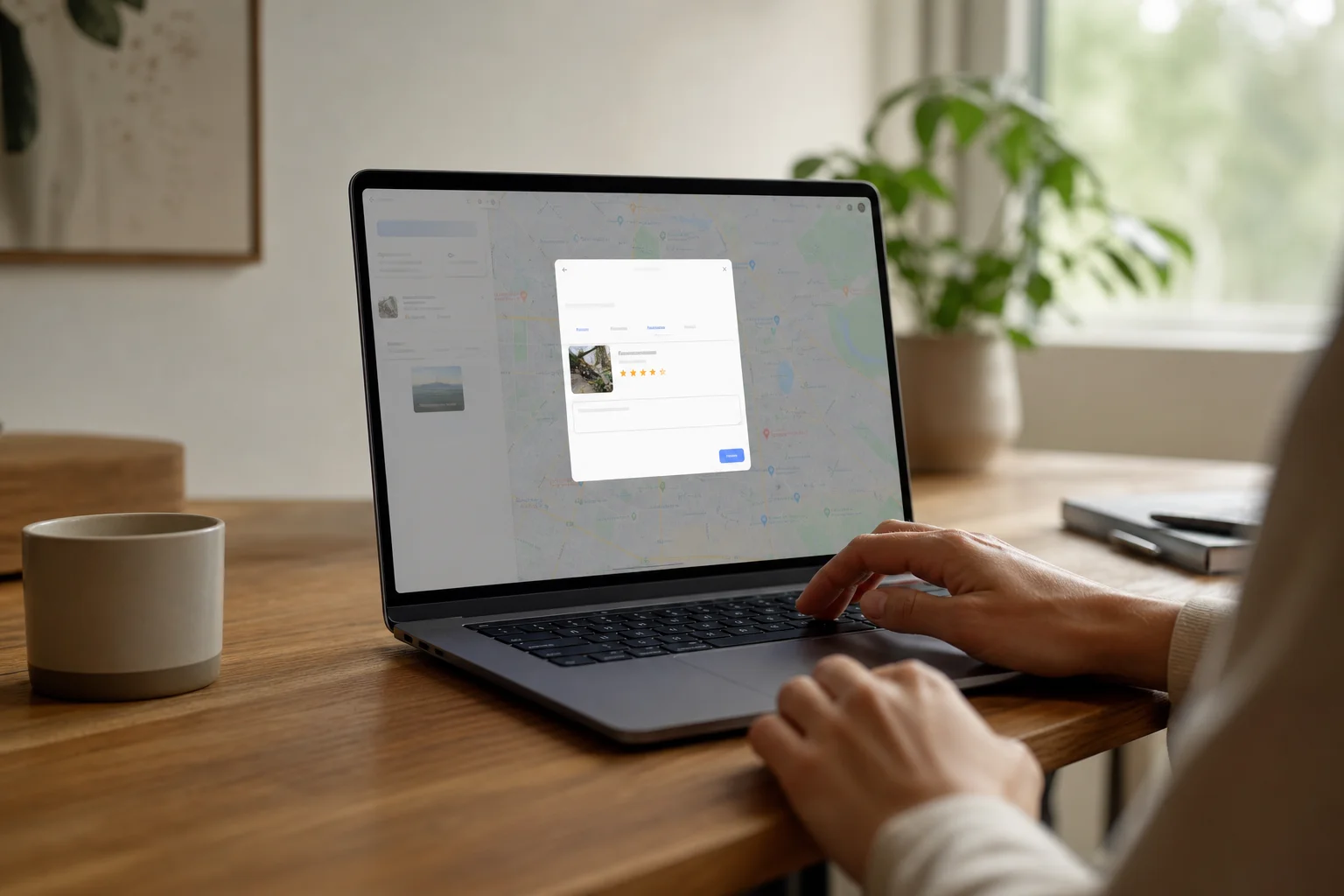
Path A: Edit in Google Maps (Desktop)
Follow these steps if you’re on a laptop or desktop:
- Open Google Maps and sign in
- Go to Google Maps in your browser and make sure you’re signed in to the same Google account you used for the review.
- Look at the top right for your profile picture. If it’s the wrong account, switch to the right one.
- Go to “Your contributions”
- Click your profile picture, then click “Your contributions.
- Select the “Reviews” tab to see the list of places you reviewed.
- Find the review you want to change
- Scroll to the business or use the search bar to find it.
- Click the review snippet to expand options.
- Click Edit
- Select “Edit review.” If you only see “Delete,” you may be in the wrong account or on a page that won’t let you edit yet. Go back to the Reviews tab and try again.
- Update rating, text, and photos
- Adjust the star rating.
- Rewrite the text to reflect your current view.
- Click the photo icon to add or remove pictures that support your update.
- Save
- Click “Post.” Your review should refresh with your changes. It may show as “Edited.
Screenshot tip: On the “Your contributions” page, look for the Reviews tab at the top. The three-dot menu next to each review reveals “Edit review.
Path B: Edit via Google Search (Desktop)
Use this if you searched for the business on Google.
- Sign in and search
- Make sure you’re signed in to the right Google account.
- Search the business name in Google Search.
- Open your review card
- On the business’s knowledge panel (right side), find your review within the “Reviews” summary.
- If you don’t see it, click “Write a review” or “View all Google reviews,” then filter to your profile.
- Click Edit review
- Select “Edit review” next to your review.
- Make your changes
- Update the rating.
- Refresh the text.
- Add or remove photos.
- Save your edit
- Click “Post.” The review updates and may show “Edited.
Path C: Edit on the Google Maps App (Mobile)
On Android or iPhone, the flow is similar:
- Open the Google Maps app
- Make sure you’re signed in to the same Google account used for the review.
- Tap your profile picture at the top right.
- Tap Your Profile or Your Contributions
- Tap “Your Profile” or “Your contributions,” then tap “Reviews.
- Pick the review to edit
- Scroll to the business. Tap the three-dot menu to the right of your review.
- Tap Edit review
- Choose “Edit review.” If you don’t see it, confirm you’re in the right account.
- Update and post
- Adjust stars, edit text, and manage photos.
- Tap “Post.” The app should confirm your update.
Pro tip: Add one clear, well-lit photo per key point you mention. For example, if you changed your rating after a second visit, add a photo of the improved dish or the fixed service issue you noted.
Reference for how reviews tie to a place listing: see Google Maps Place Details.
Common Mistakes People Make When Editing Google Reviews
Even with a clear edit google reviews step-by-step guide, small slip-ups can slow you down. Here are the frequent ones and how to fix them.
Editing pitfalls and fixes (part 1)
Using the wrong Google account is the most common snag. Check the profile image in Maps or Search and confirm it matches the account that wrote the review; if not, switch accounts. On desktop, click your photo at the top right, and on mobile, tap your photo and choose the correct account.
Confusing Edit with Delete can erase helpful history and photos you meant to keep. “Delete” removes the review entirely, which can be useful but is permanent for that version. Choose “Edit review” when you only want to adjust your rating, text, or images.
Expecting instant changes everywhere can lead to repeating the same action and creating clutter. Your update might appear quickly to you but take a short time to sync across devices or to other readers. Refresh the page, clear your cache, or wait a bit before trying again, and avoid reposting the same content.
Editing pitfalls and fixes (part 2)
Violating review policies by mistake can cause your edit to be hidden or removed. Keep updates factual and relevant to your visit, and steer clear of personal details about staff, private information, or unrelated links. If a post gets hidden, a cleaner rewrite that follows policy may be required.
Editing from the wrong surface makes the option hard to find. If Search hides the “Edit review” action, open Google Maps and go to Your contributions → Reviews, which is the most reliable screen to locate every review you wrote. From there, the three-dot menu will surface “Edit review.
Forgetting to back up long rewrites risks losing work if the app refreshes. Draft big changes in a notes app first, then paste them into the edit box so nothing disappears mid-edit. That simple habit prevents frustration and saves time.
Therefore, start each edit by confirming your account and opening the Reviews tab. Then make one clean pass: rating, text, photos, and Post. If you don’t see the change, give it a short window to settle before trying again.
**Start improving reviews today →
Also Read!
Small Business Guide to Choosing the Best Google Review Service
Best Google Review Services for Small Businesses: Managed vs DIY Approaches Compared
What Business Owners Can Do About Their Google Reviews
As a business owner, you cannot edit a customer’s review. That’s by design. However, you can do three high-impact things that work in 2027: respond well, flag real policy issues, and grow the share of satisfied customers who leave feedback.
Reply to reviews, good or bad, within a short time. Thank happy customers by name, and address concerns with clear steps so readers see your commitment. Invite the reviewer to continue the chat by phone or email, but also share what you’ll fix publicly.
Flag reviews that break rules instead of trying to argue in the thread. If a post is spam, includes hate, or isn’t about a real visit, use the “Report” or “Flag as inappropriate” option and provide a short, factual note. You can’t edit the text, but Google may remove content that violates policy after review.
Make it easy for real customers to share their stories so positives outweigh the occasional negative. Add a review link to receipts, email footers, or thank-you cards, and train your team to ask after great moments. According to InstantBizReviews, 79% of people trust online reviews as much as word-of-mouth referrals, which means each authentic story becomes powerful proof.
Optional reputation tools
In addition, services like InstantBizReviews provide reputation management services as one option. They focus on authentic and credible input, including SEO-optimized reviews and geo-targeted context, and back their work with a 15-day replacement warranty for flagged or removed reviews. Use tools like this to support your strategy, not replace the basics: great service, fast replies, and ethical requests for feedback.
“The service helped us secure authentic reviews that boosted our local search rankings. Our customers trust us more than ever.” — Owner, Thompson’s Café
What to Do Next: Keep Your Reviews Working for You
To keep momentum, build a simple routine. This mini plan pairs with the edit google reviews step-by-step guide above, and keeps your Google presence strong all year.
A 3-part review upkeep plan
Audit what’s live by reading your last 20 reviews and tagging them as praise, neutral, or issue. Note three themes you can fix right now and three you can celebrate to guide quick improvements and future messaging. This quick scan keeps efforts focused on what matters most to customers.
Schedule reviews and replies by blocking regular time on your calendar. Set a weekly 20-minute slot to reply to new posts, and reserve a monthly slot to refresh old replies where you’ve made improvements since. Consistency shows customers you’re listening.
Tune your Google Business Profile so it reflects reality. Check your hours, phone, website, and services, and add new photos that match what customers see today. A fresh, accurate profile makes it easier for happy customers to share precise praise.
Moreover, if you wrote a review months ago as a customer and your view has changed after a fix or a repeat visit, go back and edit it. Add a line like “Update (March 2027): service improved, faster checkout” so readers can see your timeline. That simple note helps locals decide with better context.

Key Takeaways
- You can edit your own Google review anytime; owners can’t edit customer text but can reply or flag issues.
- Use Maps → Your contributions → Reviews for the most reliable way to find and edit past posts.
- Fix common snags by checking the right account, choosing Edit (not Delete), and waiting for short sync delays.
- Owners win in 2027 with fast replies, clean flags for policy issues, and steady, ethical requests for reviews.
- Tools like InstantBizReviews can support with SEO-optimized reviews and a 15-day replacement warranty for flagged or removed posts.
What to Do This Week
Start small. Edit one of your own older reviews to reflect your current view with a clear “Update (2027)” note. If you run a business, reply to the three most recent reviews with empathy and a next step. Then add a calendar reminder for weekly review time. That steady rhythm builds trust you can see.


